

Creating a map
There are three ways to start a map. All of them open the same editor afterwards.
You need a verified creator account. On the web, use the Create a map card on the home page. On mobile, open the Creator Portal and create a draft. If your account is not verified yet, Create a map takes you to the creator sign-up page instead.
From your Instagram content
Section titled “From your Instagram content”The fastest way. Guidez reads your highlights, posts, and reels, finds the places, and builds a draft.
- Select Create a map, then Create a map from your content.
- Choose saved highlights, or paste Instagram links (highlights, posts, reels, and share links all work).
- Optionally add a public Google Maps list link to help identify places.
- Choose the map content language, Hebrew or English. Hebrew is the default.
- Select Create map. Building takes about 2 to 3 minutes. Keep the tab open.
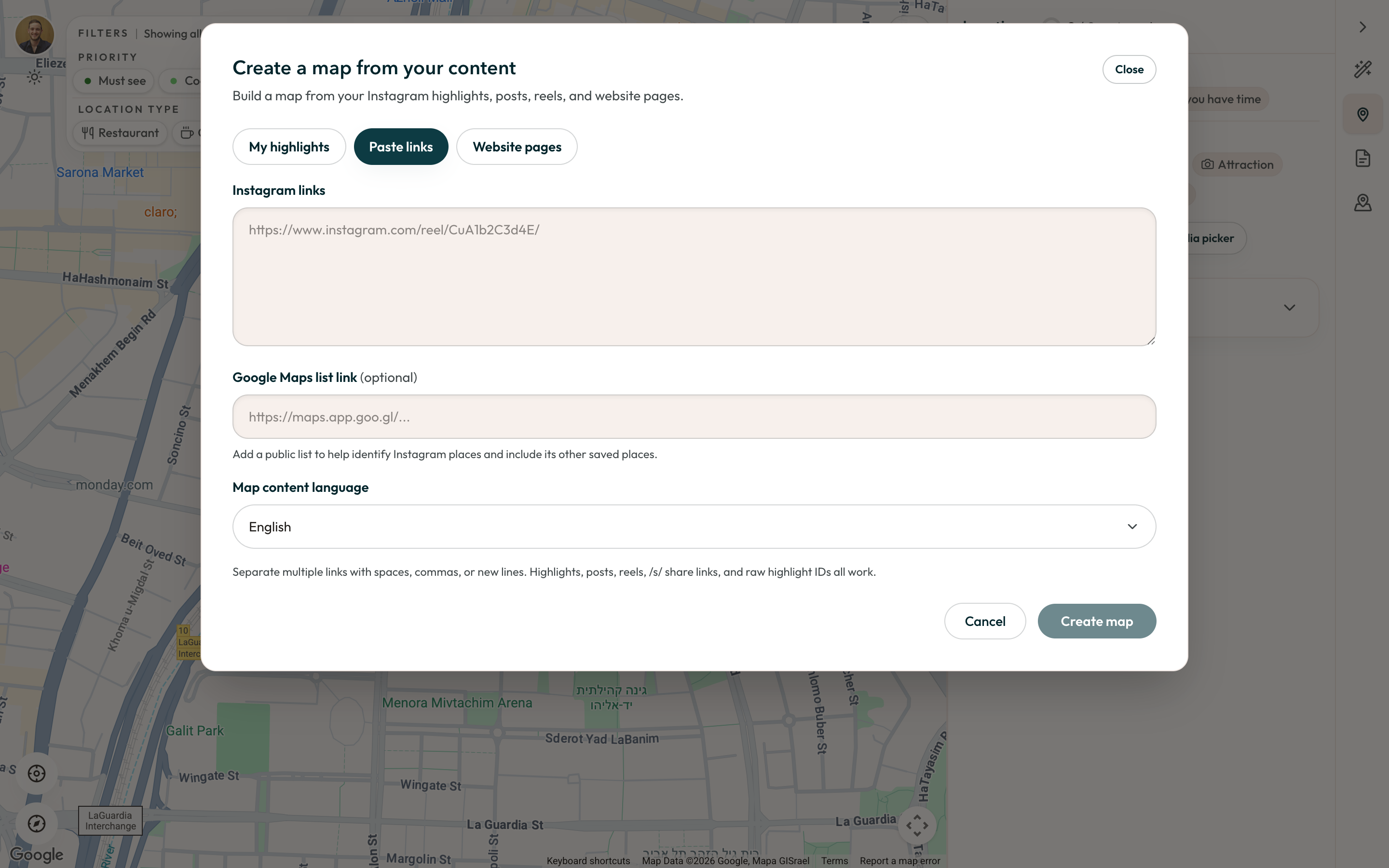
When it finishes you land in the editor with the places already added. Review and adjust before publishing.
From a Google My Maps list
Section titled “From a Google My Maps list”If you keep your places in Google My Maps, connect that list.
- In the editor, open the Google Maps converter section.
- Create an empty My Map in Google, or use an existing one.
- Share it with the Guidez email shown in the panel, as an editor. Copy the address with the copy button.
- Paste your My Map URL (it must contain
mid=) and select Verify. - Once connected, download the KML file and import it into your My Map.
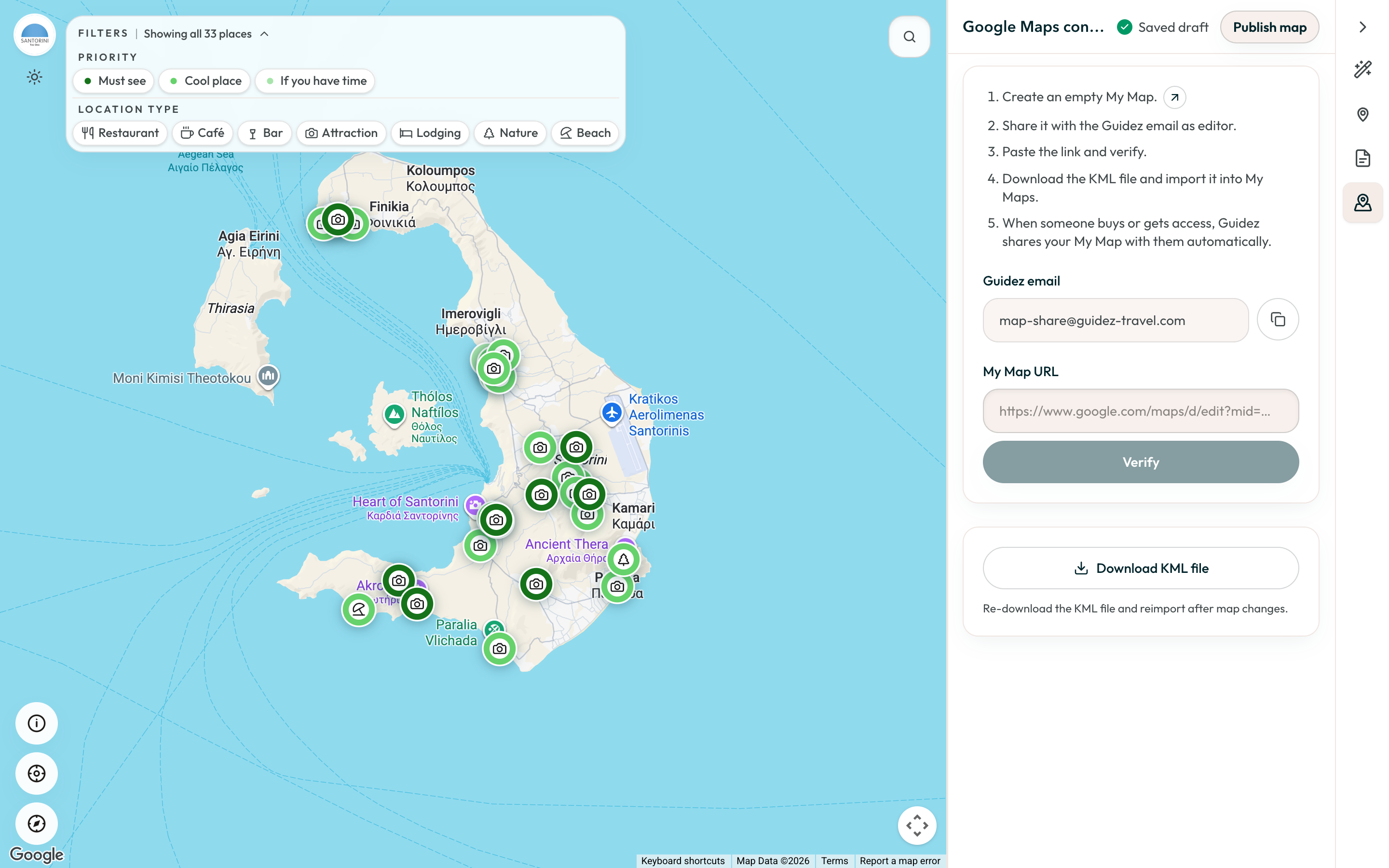
When someone gets access to your map, Guidez shares your My Map with them automatically. Re-download and reimport the KML after you change the map.
From scratch
Section titled “From scratch”Select Create a map, then start a blank draft. The editor opens with an empty map. Add places from the Locations section.
In the Creator Portal, create a blank draft. The editor is a full-screen map with a draggable panel.