
Following creators you trust
Trust is how you follow a creator on Guidez. It changes what you see.
Trust a creator
Section titled “Trust a creator”Open any creator’s page and select Trust. You need to be signed in.
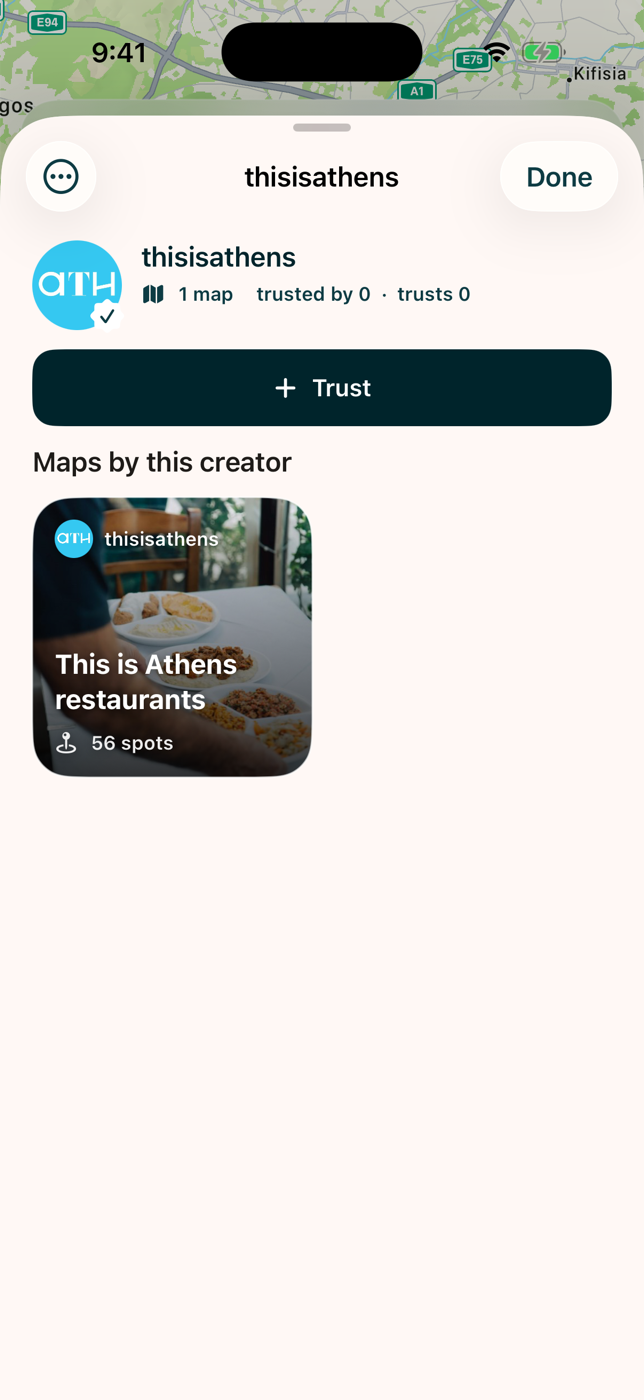
A creator’s page shows their bio, an optional Guidez audience count, up to three social links with follower counts, and every map they have published, free and paid.
If the creator has a private account, your trust becomes a request they approve. See Reporting and safety for the private-account setting on your own profile.
What trusting does
Section titled “What trusting does”- In Explore, the People I trust source shows only places your trusted creators recommend.
- When a trusted creator has recommended a place, their note is promoted to the front of that place’s card.
- Guido looks at your trusted creators first.
Find your trusted creators
Section titled “Find your trusted creators”The Saved tab shows a “trusted creators” row. Open it for the full list, with per-row message and untrust actions, and a link to find more.
Reach a creator’s page from anywhere
Section titled “Reach a creator’s page from anywhere”Every creator name or avatar is a link: creator cards, map bylines, a place’s “by creator” button, and message headers. On a place recommended by several creators, tap an avatar to switch whose note you are reading.