

Using a creator's map
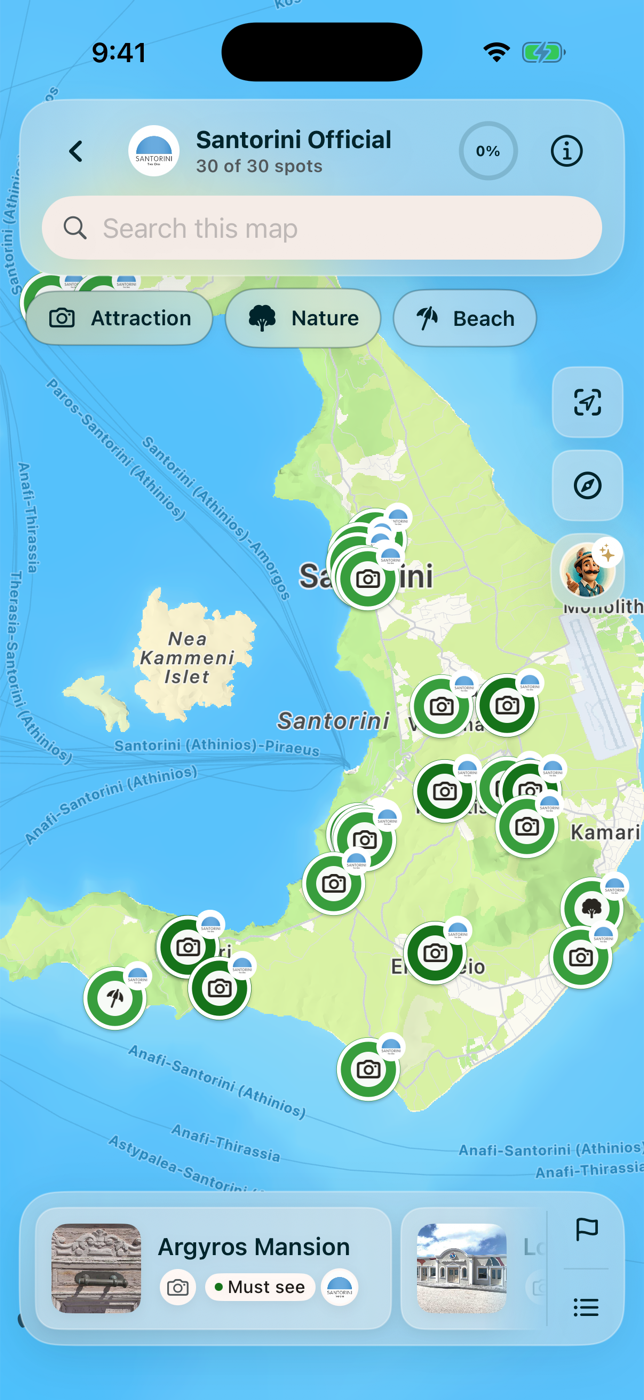
Opening a map from your library shows every place on one screen: a map with pins, a scrolling row of place cards, and search.
Find a place
Section titled “Find a place”- Search sits under the map name and searches this map’s places.
- Category chips float under the search field. A map only shows chips for categories it actually contains.
- The flag button opens the visit-priority filter (must-see, cool place, if-you-have-time). It is hidden when a map has only one priority level.
Selecting a place from a pin, a card, or a search result does the same three things every time: highlights the pin, moves the map to it, and opens its detail sheet.
The place detail sheet
Section titled “The place detail sheet”- Category and priority badges, the place name, and the creator’s note.
- Any Instagram or TikTok content the creator attached.
- A quiet Open in Google Maps link.
On the mobile apps the sheet also has Get directions (the transport picker), Add to a map to save the place into one of your own maps, and Mark as visited.
About this map
Section titled “About this map”The info button in the top bar opens the map’s own page: the creator’s map-level photos and video, the full description, and a link to the creator.
Track your progress
Section titled “Track your progress”On the mobile apps:
- Marking a place visited updates the completion ring in the top bar and plays a short animation.
- You can add photos and a short caption when you mark a place visited, creating a visit post for that place.
- Reaching 100 percent plays the animation again.
- Tap the completion ring to filter the map down to places you have not visited yet.