

Adding and editing places
Places are managed in the editor’s Locations section.
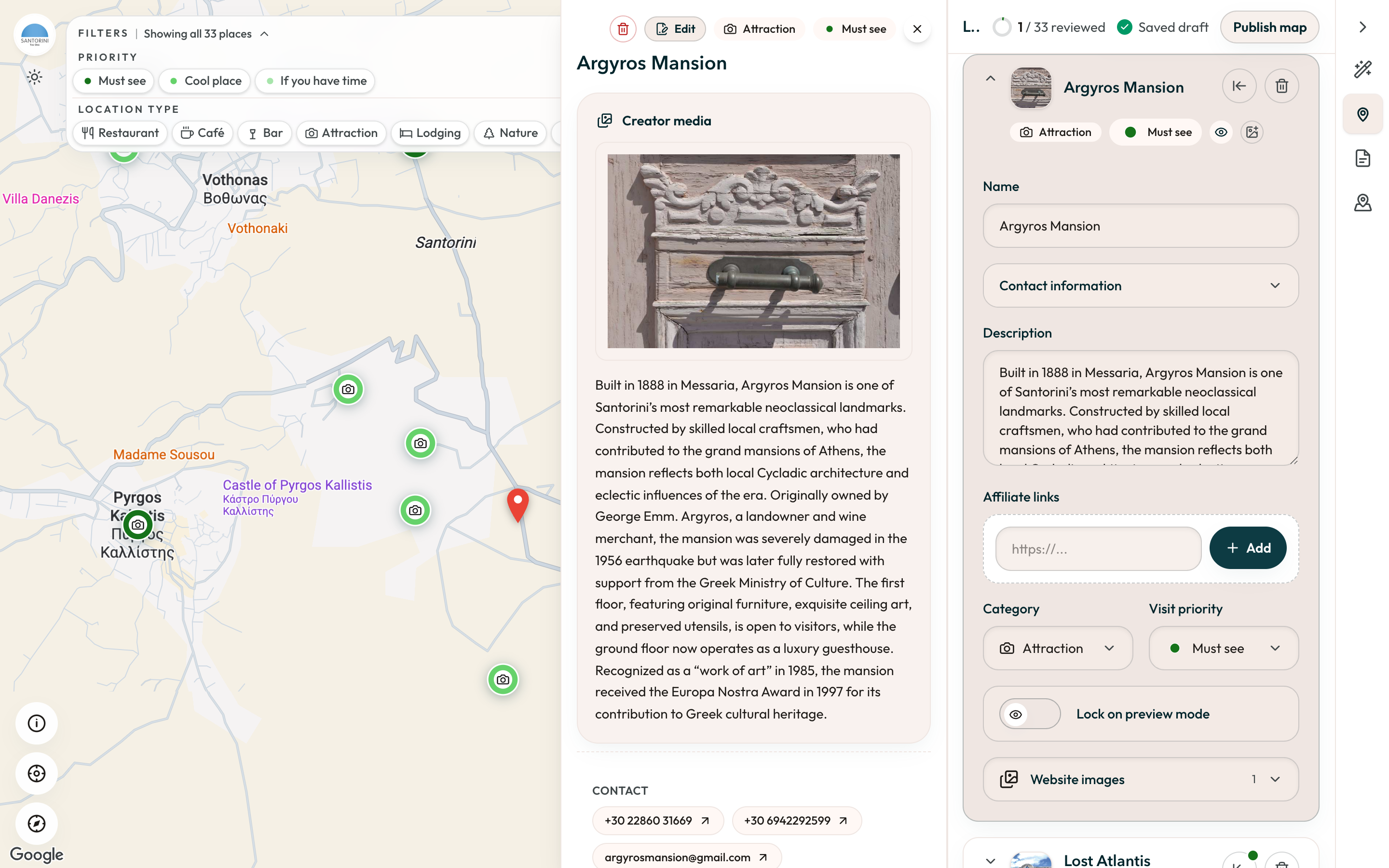
Add a place
Section titled “Add a place”Search for it by name in the Locations panel. Guidez resolves it to a Google Place and rejects duplicates. Reorder places by dragging.
Edit a place
Section titled “Edit a place”Open a place to set:
| Field | Notes |
|---|---|
| Note | Your recommendation. This is what travelers read. The field grows as you type, up to a cap, then scrolls. |
| Category | One of restaurant, cafe, bar, attraction, lodging, nature, beach. |
| Visit priority | Must-see, cool place, or if-you-have-time. Optional. This sets the pin color for travelers. |
| Affiliate links | Booking or activity links for this place. All are shown to travelers as actions. See Linkify. |
| Social content | Instagram stories, posts, and reels, or TikTok segments that feature the place. |
| Reviewed | Mark a place done so you can track your progress through a large map. |
See Categories and visit priorities for how travelers read them.
The AI assistant
Section titled “The AI assistant”The editor’s AI Assistant is a drafting chat. Ask it to add places, group them, or write notes. Its proposals are not applied until you select Apply, and you can Dismiss or undo them.
Autosave
Section titled “Autosave”The editor saves a few seconds after you stop editing. If a save fails, your edits are kept locally and you get a retry button. You do not lose work.