

Create an account and sign in
You can browse Guidez without an account. You need one to save places, follow creators, buy a map, or publish your own.
Sign up
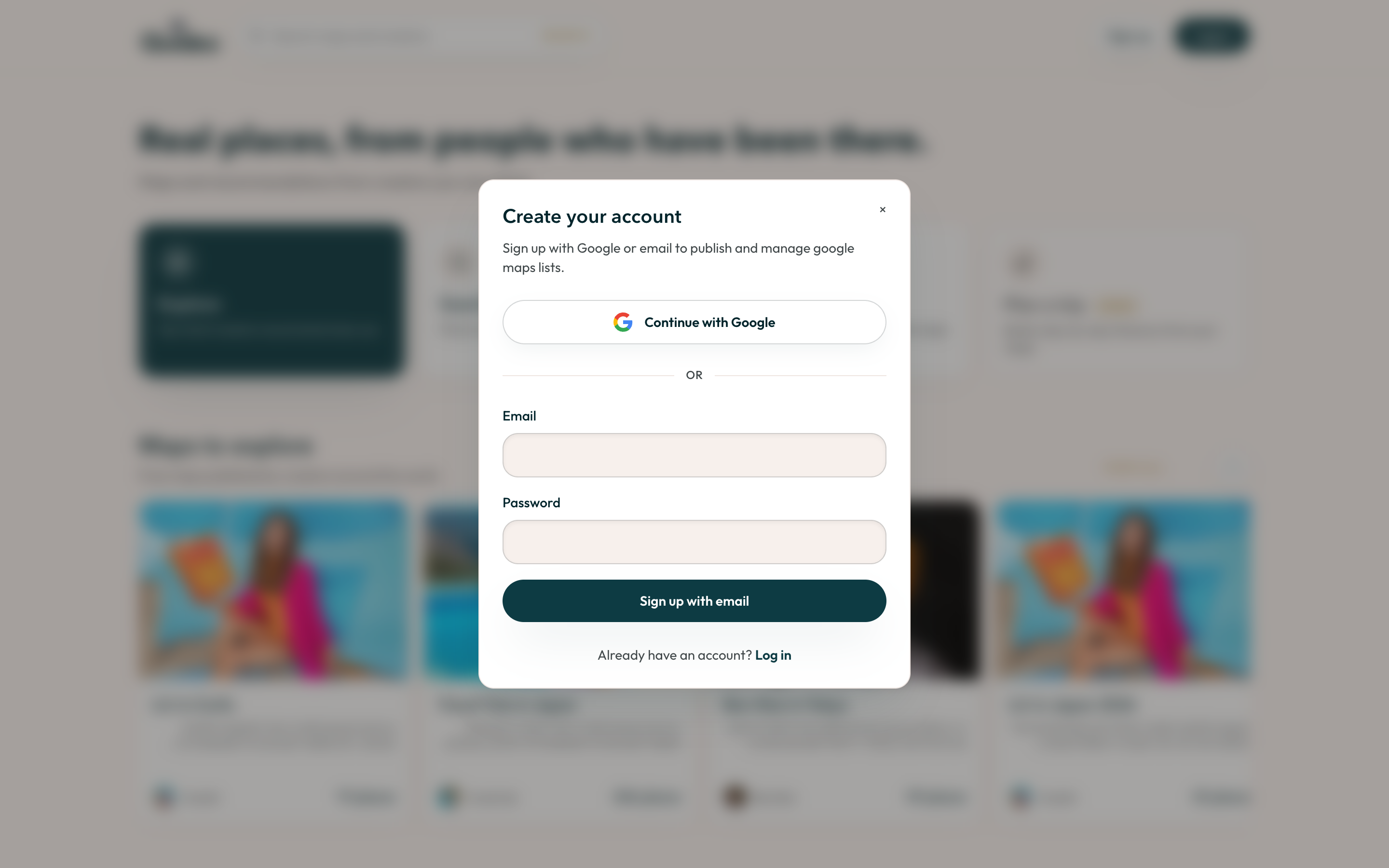
Section titled “Sign up”- Go to web.guidez.app.
- Select Sign up in the top corner.
- Enter your email and a password, or continue with Google.
- Confirm your email if prompted.
- Open Guidez and go to the Profile tab.
- Tap Sign in, then Create account.
- Use email and password, Google, or Sign in with Apple.
- Open Guidez and go to the Profile tab.
- Tap Sign in, then Create account.
- Use email and password, or continue with Google.
Sign in
Section titled “Sign in”Use the same method you signed up with. If you used email, you can reset your password from the sign-in screen.
Switch language
Section titled “Switch language”Guidez is available in English and Hebrew and follows your device or browser language by default. To change it:
- Web: Profile menu, then Language.
- iOS and Android: Profile, then Settings, then App language (this opens your system language settings).
Delete your account
Section titled “Delete your account”- Web: open web.guidez.app/delete while signed in.
- iOS and Android: Profile, then Delete account. You will be asked to confirm.
Deleting removes your profile and published maps. See Your account and settings for what is stored where.